VisuAlg does not use a heavy installer. The program ships as a compressed package that you extract and run, which is part of why it works on old school computers and new laptops alike. This guide walks through the whole process on Windows 10 and Windows 11, from the first click to your first run of the interpreter.
Before you start
You need a Windows PC, around 10 MB of free disk space and a tool that can open ZIP or RAR files. Windows can open ZIP files on its own. If the package you download is a RAR file, install a free extractor such as 7-Zip first. You do not need administrator rights in most cases, which makes VisuAlg a good choice for lab machines.
Step 1: download the package
Use the download button on our download section. The file is served from the project's public SourceForge page, so you always get the version the author published. Save it to your Downloads folder.
Step 2: extract to a permanent folder
Right-click the file and choose Extract All (or 7-Zip > Extract here). Move the extracted folder somewhere permanent, for example C:\VISUALG3. Avoid running the program straight from inside the ZIP, because Windows will place it in a temporary folder and your settings will not be saved.
C:\VISUALG3 avoids most permission and skin-loading problems.Step 3: run the program
Open the folder and double-click the VisuAlg executable. On the first launch Windows SmartScreen may show a warning because the program is not digitally signed. Click More info and then Run anyway. This is normal for small free tools distributed by individual authors.
Step 4: fix skins if the window looks wrong
VisuAlg 3.0 supports several visual themes called skins. If the theme options do not change anything, the author's own notes recommend copying the Skins sub-folder from the VisuAlg folder to the root of your main drive, so it sits at C:\Skins. Restart the program and the themes will load.
Step 5: create a shortcut
Right-click the executable, choose Send to > Desktop (create shortcut), or pin it to the taskbar. Now VisuAlg is one click away whenever you practice.
Test that everything works
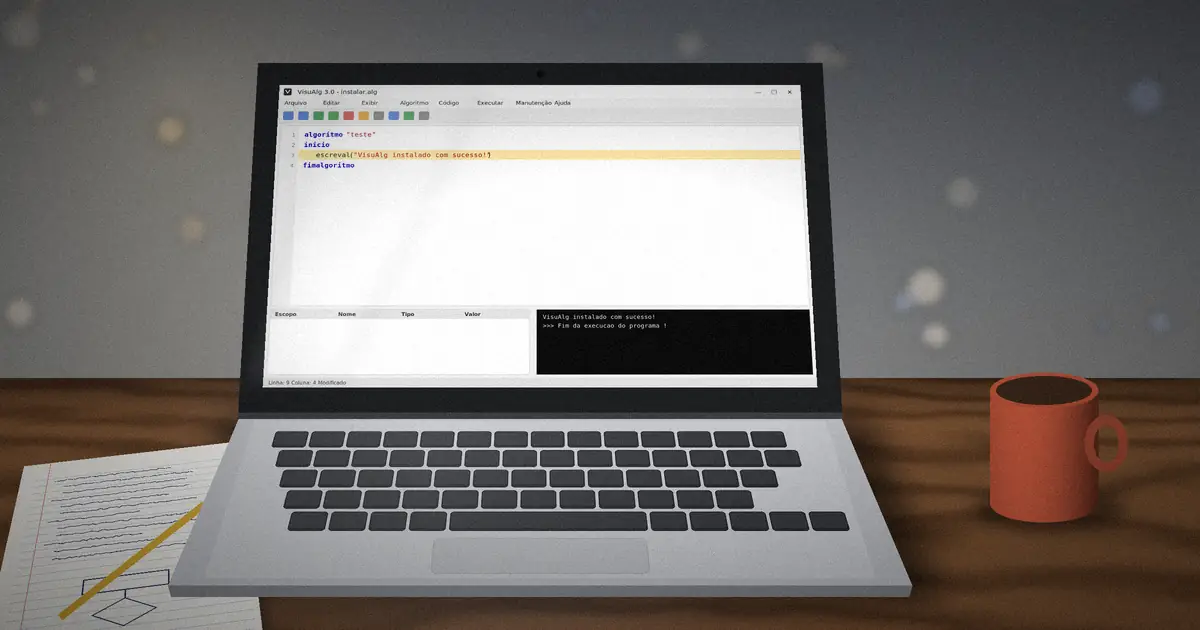
Type this short algorithm into the editor and press F9 to run it:
algoritmo "teste"
inicio
   escreval("VisuAlg instalado com sucesso!")
fimalgoritmo
A console window opens and prints the message. If you see it, the installation is complete.
Common problems
- The program closes right away: make sure you extracted all files, not just the executable.
- Antivirus blocks the file: download only from the official project page and add the folder to your antivirus exceptions if you trust the source.
- Accents look broken: save your algorithms with plain ASCII names and avoid accented letters in identifiers.
Next, write something useful with our guide to your first algorithm in VisuAlg.